
Troubleshooting Guide
Common problems, and what to do.
Last checked: 24 November 2026
For SeafarerSafe 2.29.0. The screens show a sample vault with made-up details.
I forgot my vault password
- On the Unlock screen, open “Forgot the password?” and type the recovery code from your recovery sheet. Then choose a new password.
- No recovery sheet? A family member set to “Can view and help” can open Family and access on their phone, press “Help the seafarer back in” and read you a one-time password.
- A family member who forgot their password asks the seafarer for a new one-time code, from Family and access.
- If every password and the recovery code are lost, nobody can open the vault, not even LEX DUX. This is what keeps it private.
The app says the vault key was changed
- The owner made a new vault key, or gave a new one-time code. Unlock with the new password or code.
- A PIN or fingerprint set before the change stops working. Set it again in Settings.
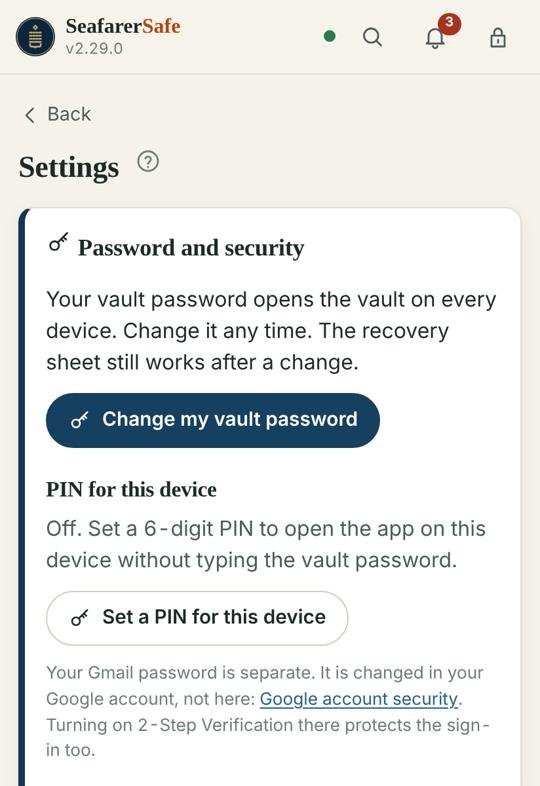
My PIN does not work
- After 5 wrong tries the PIN switches off on that device. Tap “Use the vault password instead”, unlock, and set a new PIN in Settings, Password and security.
- The PIN works only on the device where it was set. On a new phone or a laptop, use the vault password.
- Very easy PINs, such as 111111 or 123456, are not accepted.
Fingerprint stopped working
- This can happen after the phone is reset, or when a new fingerprint is added to the phone.
- Use the PIN or the vault password, then turn fingerprint on again in Settings.
I cannot sign in
- SeafarerSafe works with Gmail only (an address ending in @gmail.com). Office, Yahoo, Rediffmail or Outlook addresses will not work.
- Sign in with the same Gmail the seafarer added for you.
- If the page looks old, close the app fully and open it again. Settings, Check for an update also helps.
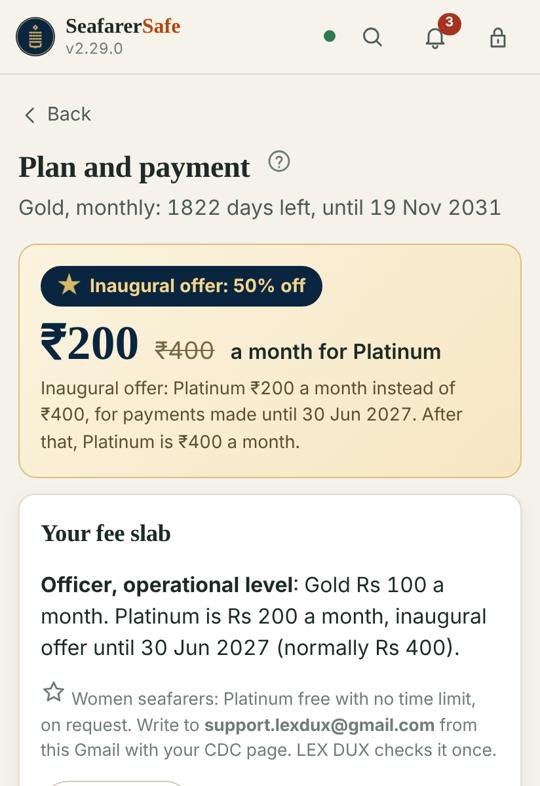
I paid, but my plan did not change
- Wait a few minutes, then close the app and open it again. A payment through Razorpay switches the plan on by itself.
- Open More, Plan and payment to see the plan and its end date.
- Still not changed? Write from More, Suggestions and complaints, with the payment reference from Razorpay. Do not pay twice.
The reader filled in something wrong, or nothing
- Check every line before you press Save, and correct anything wrong. A photo can be misread, especially numbers and dates.
- For a clear read: lay the paper flat, in good light, with no shadow, fill the frame with the page, and hold steady.
- The reader works on Gold and Platinum. The first photo read needs the internet once, to fetch the reading engine.
- A PDF that is only a picture of a page has no letters to read. Type the details by hand.
The app says the minimum age is 18, but I am older
- The date of birth may have been read wrongly from a paper. Write to support.lexdux@gmail.com from the same Gmail. The date is checked on your phone only and was not sent.
I cannot find the install button
- Android, in Chrome: open the menu (three dots) and choose “Install app” or “Add to Home screen”.
- iPhone, in Safari: tap the Share button, then “Add to Home Screen”.
- On a laptop, the app opens in the browser. Nothing needs to be downloaded.
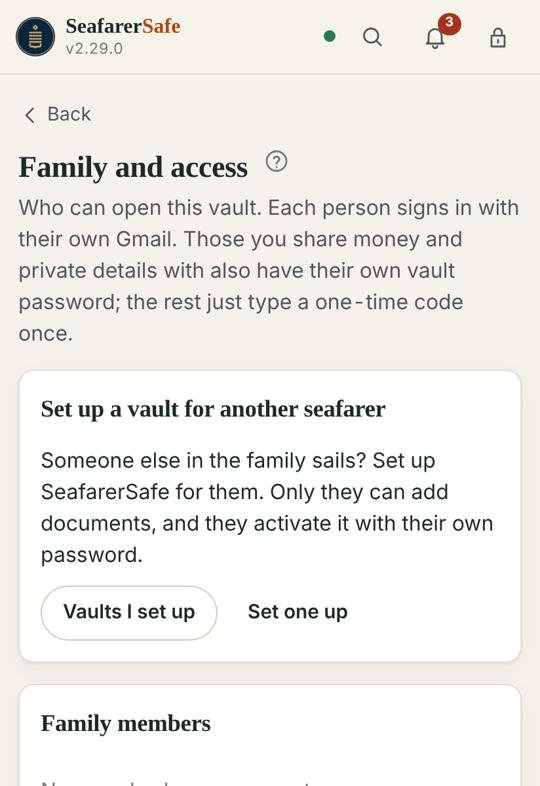
A family member cannot open the vault
- Check that the seafarer added the family member's correct Gmail, in Family and access.
- The family member signs in with that Gmail, then types the one-time code from the seafarer. If the code no longer works, the seafarer makes a new one.
- On Silver, only one family member can view. Gold allows 4.
The family does not get the “I am safe” alert
- “I am safe” needs some internet on board. It is a few words, not a photo, and goes when there is any connection.
- Each family member turns on alerts on their own phone, from Today. On iPhone, the app must first be added to the home screen.
- Check that the phone allows notifications for the browser.
No internet on board
- The app opens the copy saved on your phone, so you can read your records and documents.
- Changes, “I am safe” and family updates go when the connection comes back.
- To open scans without internet, use Settings, Keep all documents on this device, before you sail.
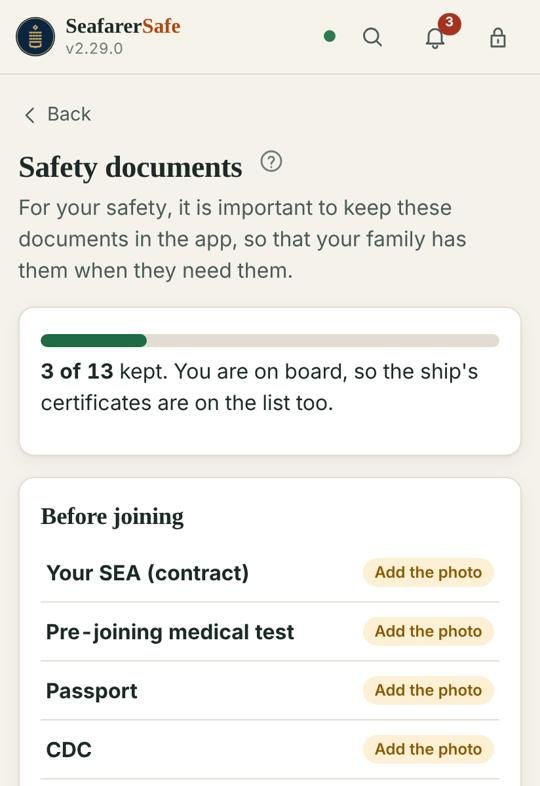
The safety documents reminder keeps coming
- While you are signed on and a paper or contact is missing, it comes every 15 days. Complete the list in More, Safety documents, and it stops.
- On Gold and Platinum a paper counts as kept when its photo is added.
The MLC Legal Shield asks for cadet proof
- Open the MLC Legal Shield and press “Send the photo”. Send a clear photo of your cadet ID card or INDoS page.
- LEX DUX checks it once, usually within one working day, and writes to you. The Shield then opens.
I lost my phone
- On a new phone, sign in with your Gmail and your vault password. Everything comes back.
- Nothing can be read on the lost phone without your password, PIN or fingerprint.
- If the lost phone had a PIN or fingerprint turned on, the owner can make a new vault key from Family and access. The lost phone then can no longer open the vault when it goes online.
- Protect your Gmail with 2-Step Verification in your Google account.
I want to delete my vault
- The owner can delete the vault and everything in it from Settings. The steps are also at seafarersafe.com/delete-account/.
- Download a backup first if you want to keep a copy.
A counter looks wrong
- Every counter counts from the dates you entered. Read the small note with the asterisk under it: it shows the ship and the dates used.
- Tap “Check or edit” and correct the sign-on, expected sign-off or actual sign-off date from your CDC.
- If you signed off and Today still shows you at sea, answer “Still on board?” or add the sign-off date to the contract.
- For NRI days, add the dates you left India and came back, if they differ from the sign-on and sign-off dates.
Pulling the page down used to lock the app
- From version 2.29.0, pulling the page down at the top fetches the latest and shows “Up to date.”. The app stays open.
- If an old version is still on the phone, close the app fully and open it again, or use Settings, Check for an update.
I cannot see the shortcuts on the app icon
- Shortcuts work on Android, when the app is installed on the home screen. Press and hold the icon.
- If they do not appear, remove the app from the home screen and install it again from Chrome.
Still stuck?
- Write from More, Suggestions and complaints. We reply in the app.
- Or email support.lexdux@gmail.com from the Gmail you use in the app.
- Never send your vault password, PIN, recovery code, bank passwords or OTPs to anyone, including LEX DUX.